Secure Print for Fiery-Enabled Devices
Follow these instructions to configure the Fiery Controller Support add-on to an existing SLNX system. This add-on allows you to release secure print jobs to a Fiery-enabled device. Configuration steps are required within the SLNX Management Console.
Only users who log in to the Management Console with a Customer Engineer role can add the required entries to the Delegation Server keys. Refer to Overview of System Roles for instructions regarding roles.
You can specify the Fiery controller IP address for an MFP by using the SLNX Management Console, allowing SLNX to communicate directly with the Fiery controller for printing documents. However, the SLNX Embedded application must still run on the MFP panel.
When the user logs into the SLNX Embedded on the MFP, the embedded print app requests the print jobs for that device. The Delegation server checks the device configuration and determines that the MFP is using a Fiery. SLNX then sends the job list to the embedded print app, with each job marked as an “XSC” job. Requests for jobs to be released are sent to port 9100 on the Fiery controller. The Fiery controller will render and print the jobs.
Review the Limitations below before proceeding.
Prerequisites
Prior to configuring the Fiery support in the SLNX Management Console, ensure that the following prerequisites are met:
-
The Fiery controller is configured with a known IP address.
-
Using the Fiery embedded web server, printing using port 9100 is enabled. Refer to this Fiery link.
-
Fiery standalone printing capability has been confirmed, either using a Fiery test page (from the embedded web server) or by printing a Windows test page (to port 9100 at the Fiery’s IP address).
-
LPR and SMB printing should be typically be disabled in the Fiery configuration.
-
For both types of Fiery controller (Server and Embedded models), the appropriate Fiery-specific driver is installed (each requires a different driver) and the regional settings on the both model types are set correctly.
Neither PC Client nor macOS Client is supported for Fiery printing.
Enable XSC
-
Click [System] ⟶ [Server Settings] ⟶ [Advanced System Settings Editor].
You must be logged into the Management Console with Customer Engineer role privileges to access the Advanced System Settings option.
-
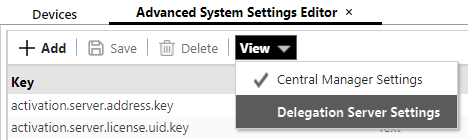
Change the View to Delegation Server Settings, shown below.
-
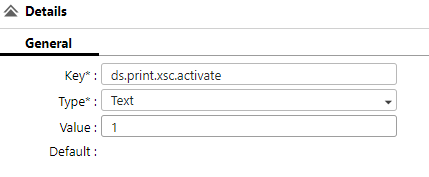
Click [Add], and then add a new entry where the key is “ds.print.xsc.activate” with the type of “Text” and a value of 1.
-
Click [Save].
Update the Device Details with the Fiery
-
In the Device List, select the device that has a Fiery controller.
-
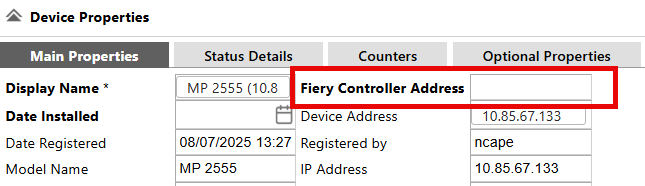
On the Main Properties tab, enter the address of the Fiery in the "Fiery Controller Address" field.
-
Click [Save].
Install SLNX Embedded on the Device
If it is not already installed, proceed to install SLNX Embedded on the device. After the installation, the device is ready to release jobs through the Fiery controller.
Reprints from Fiery Command Workstation will not count/track in SLNX.
Print Driver Considerations
There are two approaches to print drivers:
-
Use the same print queue as the non-Fiery-based Ricoh devices in SLNX (either the PS Universal driver or the new Windows class driver with the Ricoh PSA)
-
This approach will provide ease of printing and flexibility in selecting an output device, including Fiery devices
-
These standard drivers are not able to take advantage of the advanced capabilities of the Fiery controllers
-
These jobs will print but may not correctly render print colors, finishing options, tray selection etc. correctly due to driver incompatibility
-
-
Use Fiery-specific driver
-
This method allows the user to choose Fiery-specific rendering options, printing capabilities and other features
-
This method places two different types of jobs into a user queue, some jobs from standard Ricoh drivers and other jobs from Fiery drivers
-
It is not possible to limit the embedded application on the Fiery MFP to see only jobs from the Fiery controller, or vice versa
-
Limitations
-
SLNX does not show the status of the Fiery controller
-
PC Client and Mac Client secure printing to the Fiery controller is supported for Server Secure print jobs only (client Secure Print jobs will be printed using the GW+ controller rather than the Fiery controller)
-
Managing direct print jobs to the Fiery controller is not supported (although secure print jobs can be released to the Fiery, management of direct print to the Fiery is not supported)
-
Modification of print jobs at the operation panel is not supported, whether using a standard Ricoh driver or a Fiery driver. This includes changing print settings such as quantity, print sides, and color mode.
-
The “printed” icon in the job list is not shown for jobs sent to the Fiery controller
-
Jobs marked as “Hold” in the Fiery driver will count as printed in SLNX
-
Reprints from Fiery Command Workstation will not count/track in SLNX
-
The Embedded application cannot determine whether a job has been printed. As a result, it cannot display the “printed” status.
-
The SLNX Embedded application cannot display a server/client icon. Instead, an icon representing an external server is displayed.
-
SLNX does not support a cloud environment for the Fiery Controller. When SLNX is deployed in a public cloud environment, Fiery support is no longer possible. The Delegation Server must be able to reach the Fiery controller on the network, and normally this cannot be done from outside the firewall.
-
Delegate printing to the Fiery controller is not supported because the required XSC plugin does not support delegate printing. Jobs from a delegate will be printed using the GW+ controller rather than the Fiery controller.
If the Fiery driver is used, these limitations apply:
-
Any user credentials entered into the Fiery driver are unavailable to SLNX; therefore, the print job owner is the user who is logged onto the Windows PC from where the job was printed
-
Job accounting data in SLNX is limited, and only page count is guaranteed
-
The print rules are limited to:
-
Conditions: total pages, data size, day and time are supported
-
Actions: redirection and modification are unsupported
-
